Redirect Pro for WooCommerce Documentation

Complete guide to installing, configuring, and using the Redirect Pro for WooCommerce plugin

Introduction

Redirect Pro for WooCommerce plugin is designed to redirect users to a specific link after they have successfully purchased a specified WooCommerce product. It also has the option to generate and append a temporary link to the redirect URL. This plugin is useful for scenarios where you want to provide customers with access to special content or resources after a purchase. .

Key Feature: Redirect Pro for WooCommerce enables product-specific redirects after purchase completion.

Key Benefits

  • Enhanced UX: Ensures customers land on the right pages, reducing frustration and improving the shopping journey.
  • Custom Dashboard: All features are conveniently controlled directly from your WordPress dashboard
  • Unlimited Redirects: Create as many redirects as you need without performance issues
  • WooCommerce Optimized: Fast, lightweight redirects that preserve your store’s speed and performance
Redirect Pro for WooCommerce Key Benefits

Installation

Installing Redirect Pro for WooCommerce is straightforward and similar to any other WordPress plugin. Follow these steps to get started:

1

Download

Download the plugin zip file

2

Upload

Go to WordPress Admin → Plugins → Add New → Upload Plugin

3

Activate

After installation, click “Activate Plugin”

Post-Installation Setup

After activation, you’ll find a new “Redirect Pro for WooCommerce” menu in your WordPress admin:

  • Click “Add Product” to create new product configuration.
  • Enter product details: Product ID Product Name Redirect URL.
  • Click “Save Changes” to activate your settings.

System Requirements

Redirect Pro for WooCommerce is designed to work with most WordPress hosting environments. For optimal performance, we recommend:

Component Minimum Recommended
WordPress 5.1 6.8+
WooCommerce 5.0 7.0+
PHP 7.0 8.0+
MySQL 5.6 8.0+
Memory Limit 128MB 256MB+

Note: Redirect Pro for WooCommerce creates two custom database tables for optimal performance. Ensure your hosting allows table creation.

Managing Redirects

The core functionality of Redirect Pro for WooCommerce is creating and managing URL redirects. You can access all redirects at WordPress DashBoard → Redirect Pro for WooCommerce.

Creating a New Redirect

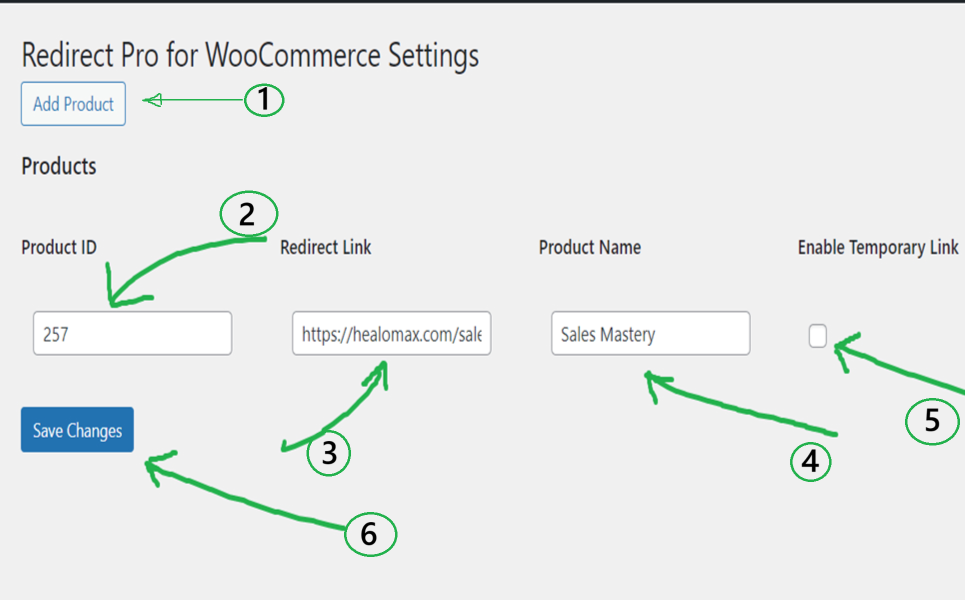
  1. Go to Redirect Pro for WooCommerce → Add New
  2. Product ID: Enter the WooCommerce Product ID for the product that triggers the redirection after purchase.
  3. Redirect Link: Specify the URL where users will be redirected after purchasing the product.
  4. Product Name: Set the name of the product (for your reference only)
  5. Enable Temporary Link: Check this box to generate and use a temporary link in the redirection.
  6. Click the “Save Changes” button: to save your settings.
Redirect pro for woocommerce
Add New Redirect: Follow the steps

How it Works: Once the plugin is configured, it will automatically redirect users to the specified link after they purchase the designated WooCommerce product. If you’ve enabled the “Enable Temporary Link” option, a temporary link will be generated and included in the redirection.

Troubleshooting

Solutions to common issues you might encounter with Redirect Pro for WooCommerce.

Redirects Not Working

  • Check caching: Clear your site cache and any CDN caches.
  • Double-check: Entered WooCommerce product ID.
  • Cache exceptions: Ensure Configure caching exceptions.
  • Check for conflicts: Temporarily disable other plugins to test
  • Confirm URL matching: Entered Redirect URL configuration.
  • Check: Exclude temporary pages from 404 redirection.

Potential Challenges with Temporary Links:

When using temporary links, you might encounter issues with caching and 404 redirection.
Here’s what you need to know:

404 Redirection Challenges

  • If your website is configured to automatically redirect all 404 errors (missing pages)

    • Temporary links might be incorrectly treated as invalid pages
    • Users could be automatically redirected to your homepage or a default page

Solving 404 Redirection Issues:

To ensure your temporary links work correctly, you have options:

  1. Exclude temporary pages from 404 redirection
  2. Disable 404 redirection plugins
  3. Check your 404 plugin’s usage instructions

Caching-Related Complications:

  • Caching can interfere with temporary links
  • Cached page versions might show outdated information
  • Users could be redirected to incorrect pages

Managing Caching for Temporary Links:

To prevent caching issues:

  1. Exclude temporary link pages from caching
  2. Example exclusion path: domain.com/sales-page/temporary-link
  3. Check your specific caching plugin’s configuration

Temporary Link Issues:

  • Confirm “Generate Temporary Link” is enabled
  • Make sure link is for an internal WordPress page.
  • Check that no caching or 404 redirection plugins are interfering

Pro Tips:


  1. When setting up temporary links, always test thoroughly to ensure smooth user experience!
  2. Always test your configurations with a test purchase to ensure everything works perfectly!
  • This plugin is all about creating smooth, professional customer experiences. Take your time to set it up carefully, and you’ll be providing seamless post-purchase journeys in no time!

Frequently Asked Questions

Is there a limit to the number of products I can configure with this plugin?

No limits! You can configure unlimited products without any performance impact. Our Starter plan license covers 1 store, Professional plan supports up to 5 stores, and our Agency plan handles unlimited stores—all with no redirect limits.

How do I add a new product for redirection?

Simple 3-step process:

1. In WordPress dashboard, go to “Redirect Pro for WooCommerce” menu
2. Click “Add Product” to create new product configuration
3. Click “Save Changes” to activate your settings

Can I generate temporary links for specific products?

Yes! You can enable the “Generate Temporary Link” option while configuring any product for enhanced security and tracking.

What happens when a customer purchases a product with a temporary link?

A secure temporary link is automatically generated, and the customer gets redirected to it immediately after purchase completion.

How can I edit the redirection settings for a product?

Easy editing process:

1. Click “Edit” button next to the product in WordPress dashboard
2. Update your settings as needed
3. Click “Save Changes” to apply updates

Can I delete a product configuration?

Yes, simply click the “Delete” button next to the product you want to remove, then click “Save Changes” to confirm.

What are temporary links, and how do they work?

Temporary links are secure, time-limited URLs generated after purchase. They automatically expire after 24 hours and can be enabled or disabled in plugin settings.

Are the plugin settings saved securely?

Absolutely! The plugin follows WordPress security best practices for data storage, ensuring your configurations are safe.

Will I receive updates without renewing?

Yearly renewal ensures you receive the latest updates, new features, and improvements to keep your plugin current and secure.

How can I make sure my temporary page works properly with caching enabled?

Exclude temporary pages from cache settings. If your temporary link is domain.com/sales-page/temporary-link, exclude all URLs from domain.com/sales-page/ in your caching plugin settings. Check your cache plugins for further details.

How can I make sure my temporary page works properly with 404 redirects?

Either exclude temporary pages from 404 redirection rules or disable 404 redirection plugins to ensure proper functionality.

Can I use the free version along with the Pro version?

We recommend uninstalling the free version before installing Pro to avoid potential conflicts and ensure optimal performance.

Are there any limitations to the temporary links?

Temporary links work for internal links within your WordPress website only. They are not designed for external website redirects.

Is the functionality of generating temporary links assured?

Temporary link generation is provided as a free addon feature with best-effort support.

What happens to temporary links if my website redirects all 404 errors?

If 404 redirection automatically redirects missing pages to predefined locations (homepage or landing pages), temporary links might be treated as invalid URLs.

What happens to temporary links if my website has caching enabled?

Caching may cause temporary links to display outdated information or redirect incorrectly, potentially making temporary links appear invalid.

Support

We’re here to help you get the most out of Redirect Pro for WooCommerce. Choose from our support options:

Knowledge Base

Browse our extensive documentation and tutorials

Under Progress

Community Forum

Get help from other Redirect Pro for WooCommerce users

Under Progress

Support

Direct support from our technical team

Submit Ticket